Set up VPN Master Pro on iOS
Follow these quick steps to get connected. No sign in or account creation is required on iOS right now.
Step 1: Open the App Store
On your iPhone or iPad, tap the App Store icon from your Home Screen.

Step 2: Search for VPN Master Pro
Tap on Search tab at the bottom. In the search bar, type VPN Master Pro.
Step 3: Get the app
Locate VPN Master Pro in the results and tap the Get button.
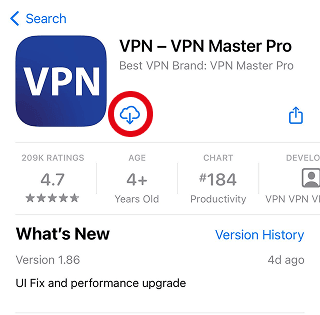
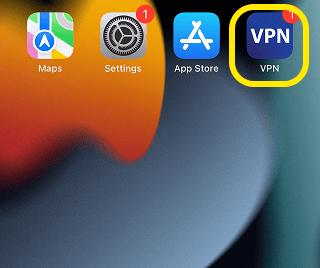
Step 4: Open the app
Tap 'Open' in the App Store or launch VPN Master Pro from your Home Screen. The app loads directly to the main dashboard—no sign in needed.
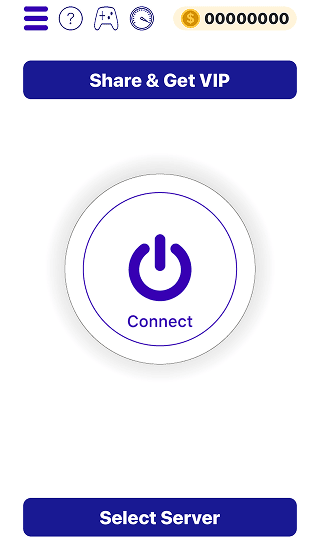
Step 5: Tap Connect
Tap the large Connect button. The first time, iOS will show a system dialog asking to allow VPN configurations. Tap Allow and, if prompted, confirm with your device passcode or Face/Touch ID.
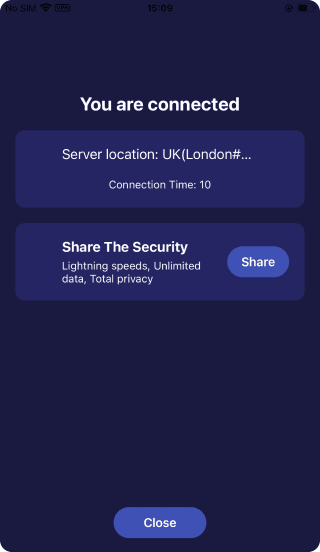
Step 6: Connection successful
Once connected you'll see status, duration, and a new IP. You can verify it on an IP checker site.
To change your virtual location, tap on Server button at bottom of homepage choose as your will.
Need More help?
If you are experiencing issues, please reach out to our support team for assistance.