How To set up VPN Master Pro on Android
Watch our video guide to get started with VPN Master Pro quickly.
Step-1: Get the app
-
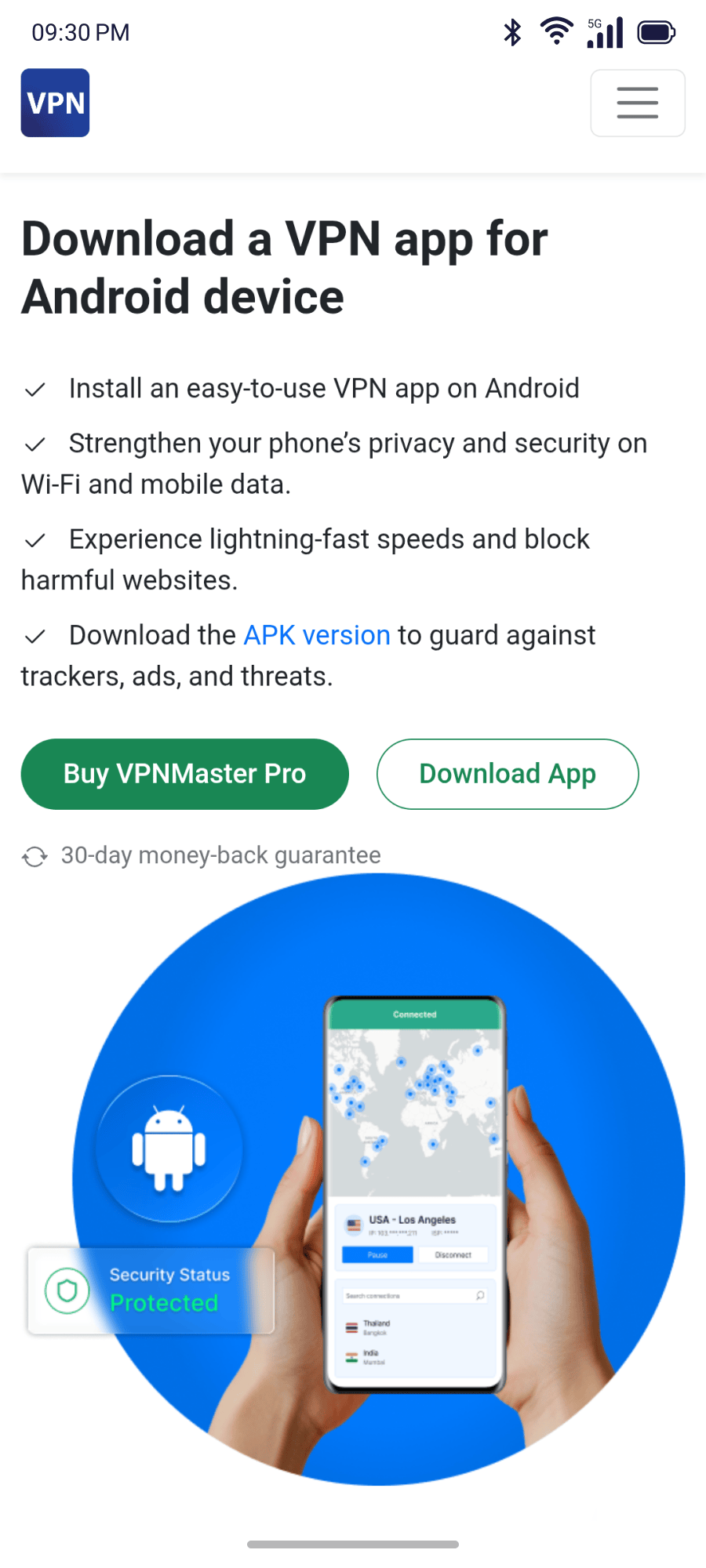
Download the apk file from the Android downloads page and click on the Download App button. The download will start automatically.
-
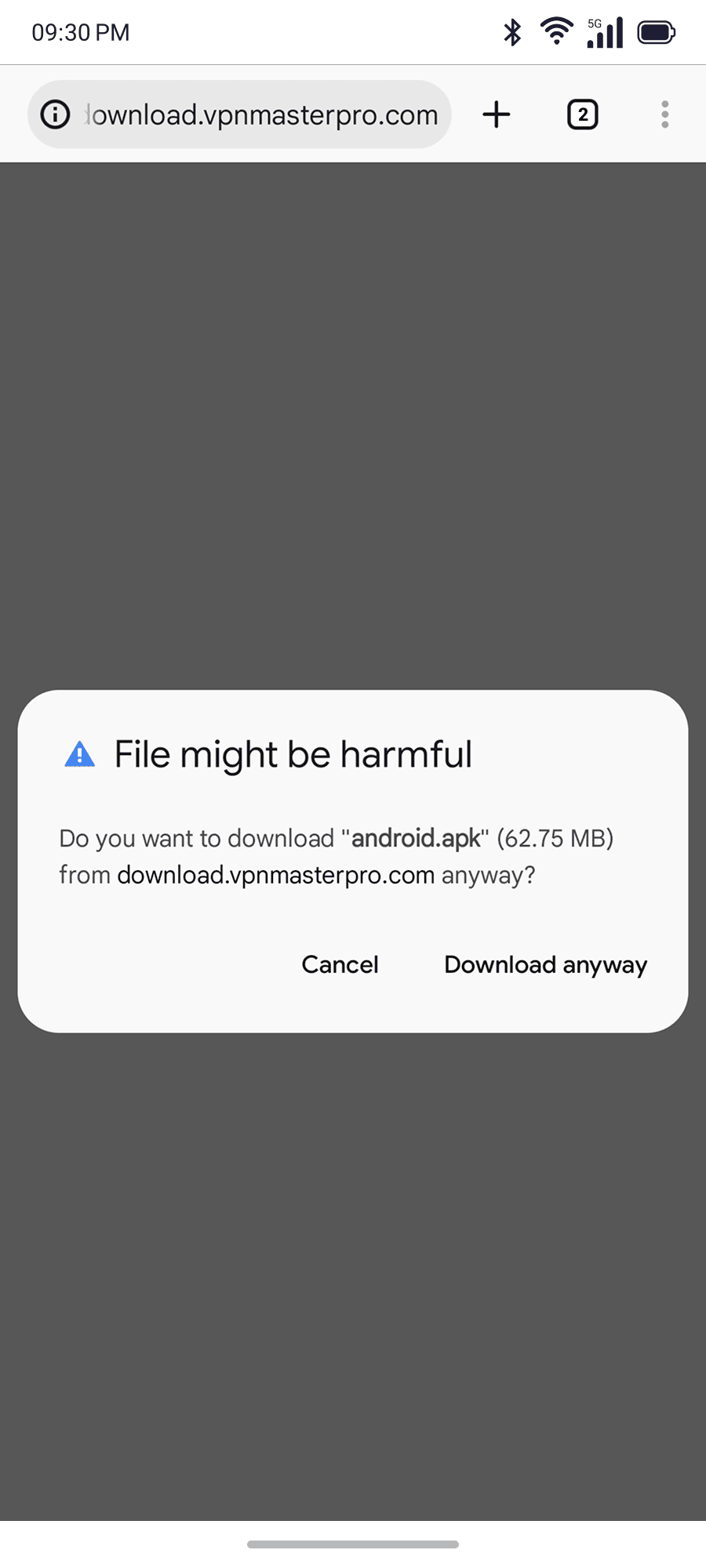
If you may see this warning while downloading, please tap on Download anyway.
Step-2: Install the app
-
Go to the download folder and find the
android.apkfile.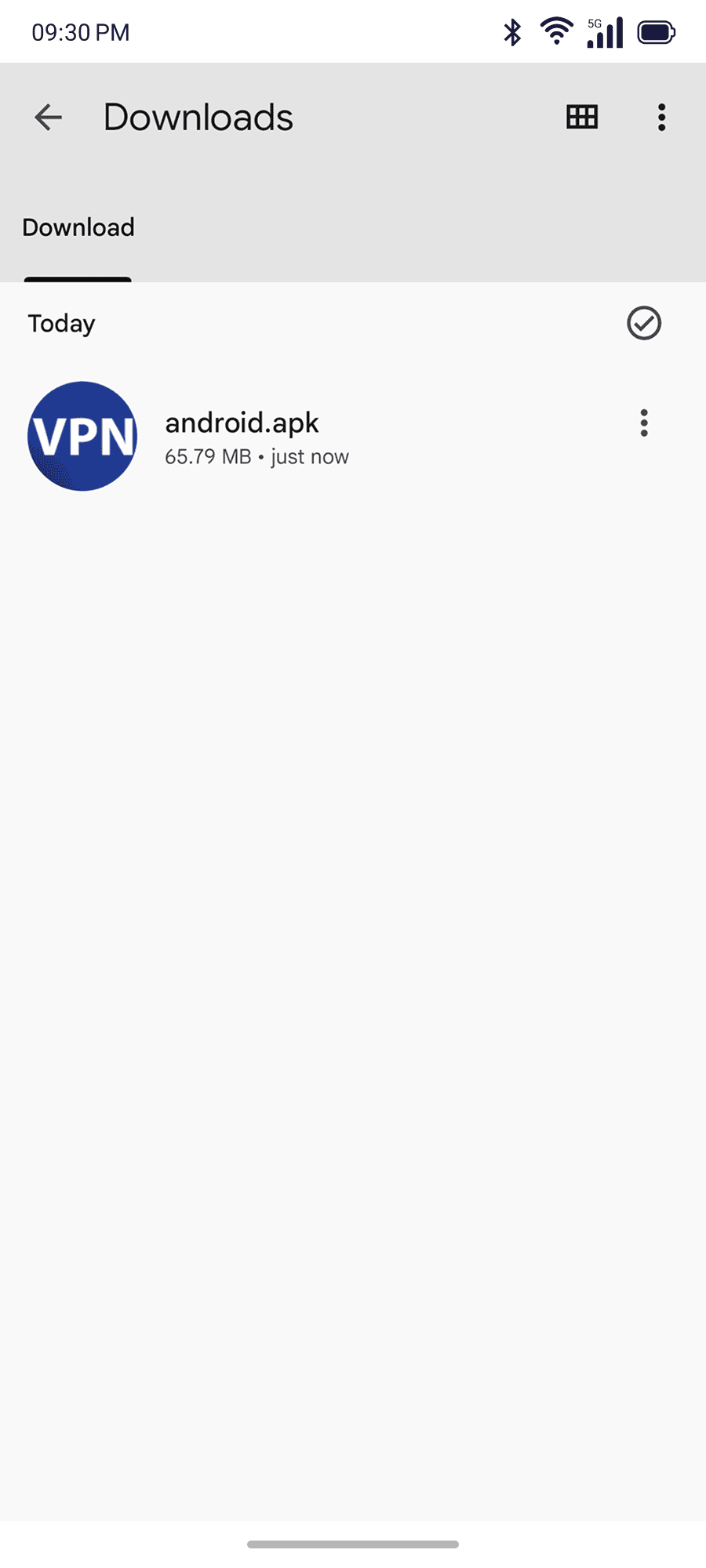
-
Open the file and the installation process will start. To confirm, tap on Install
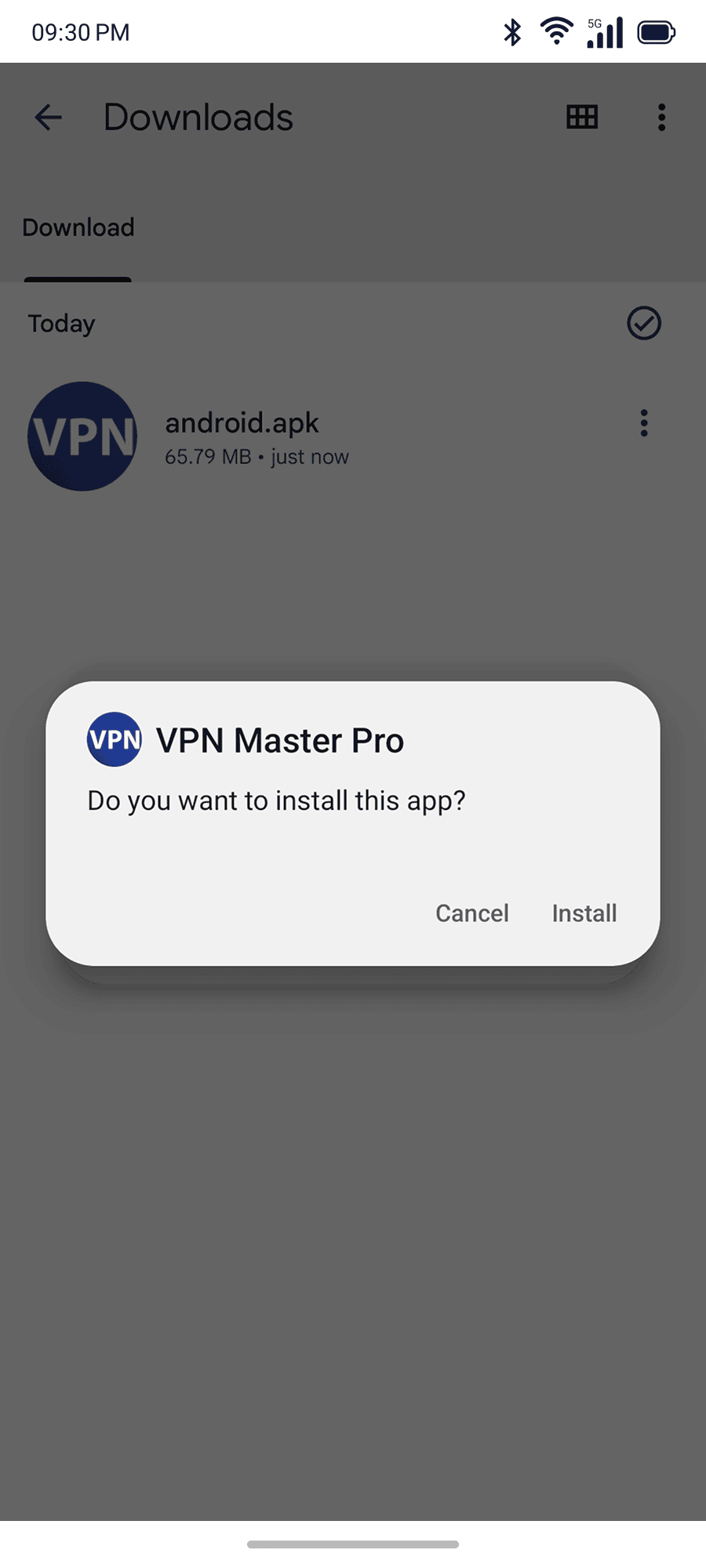
When the installation finishes, open the app.
Step-3: Setup your account
If you're a new user:
-
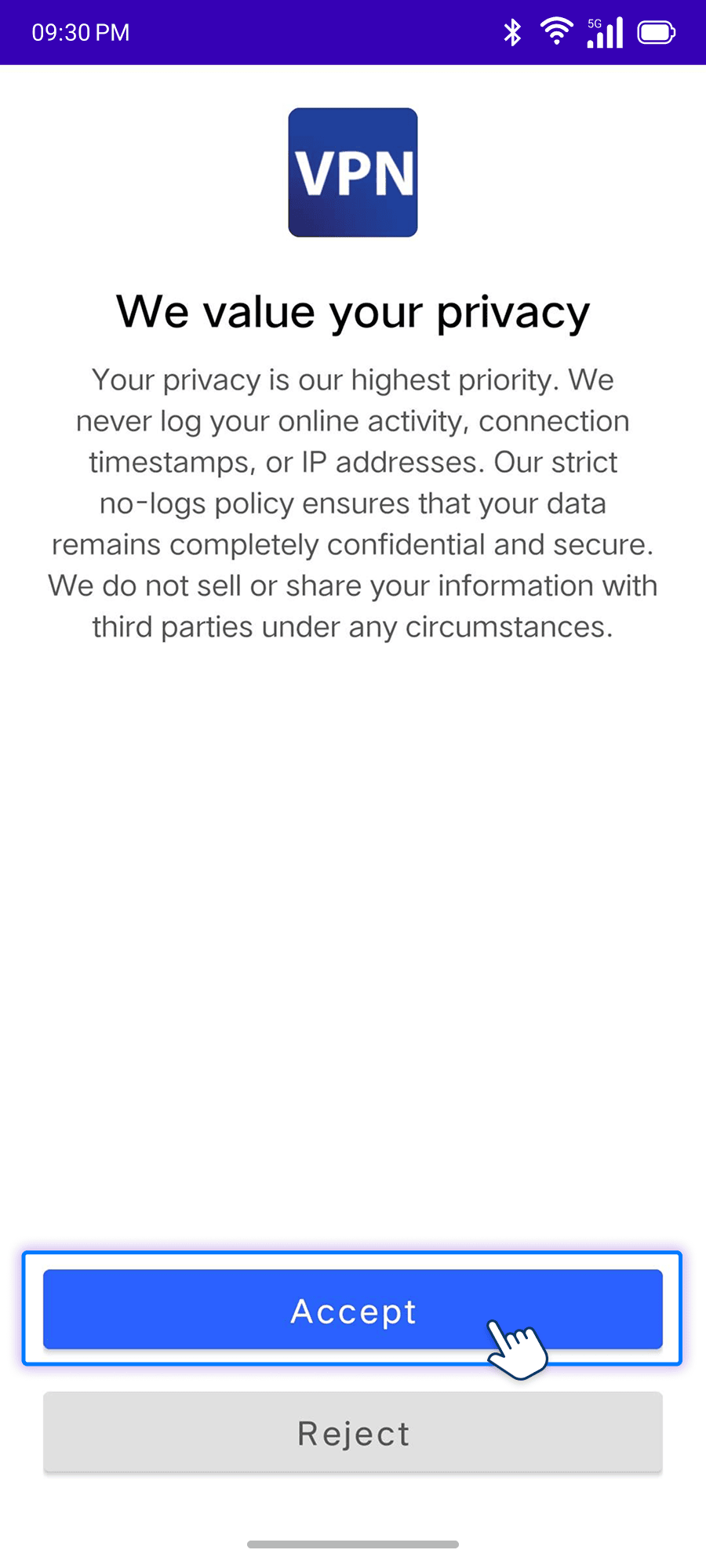
On first launch you'll see the this screen. Tap on the Accept to accept the Terms of Service and Privacy Policy.
-
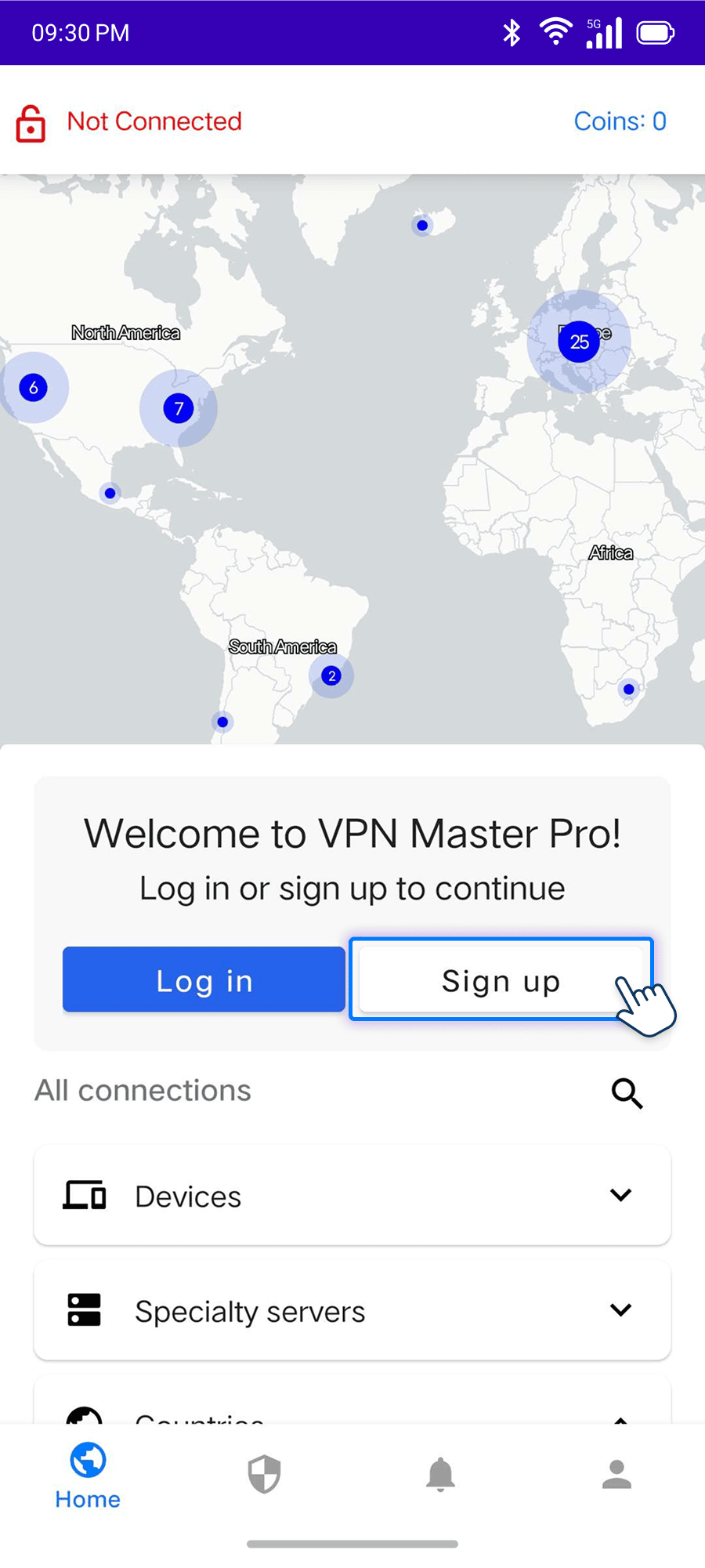
Tap on the Sign up button of the app. This will open the default browser on your device. Then follow the steps below:
-
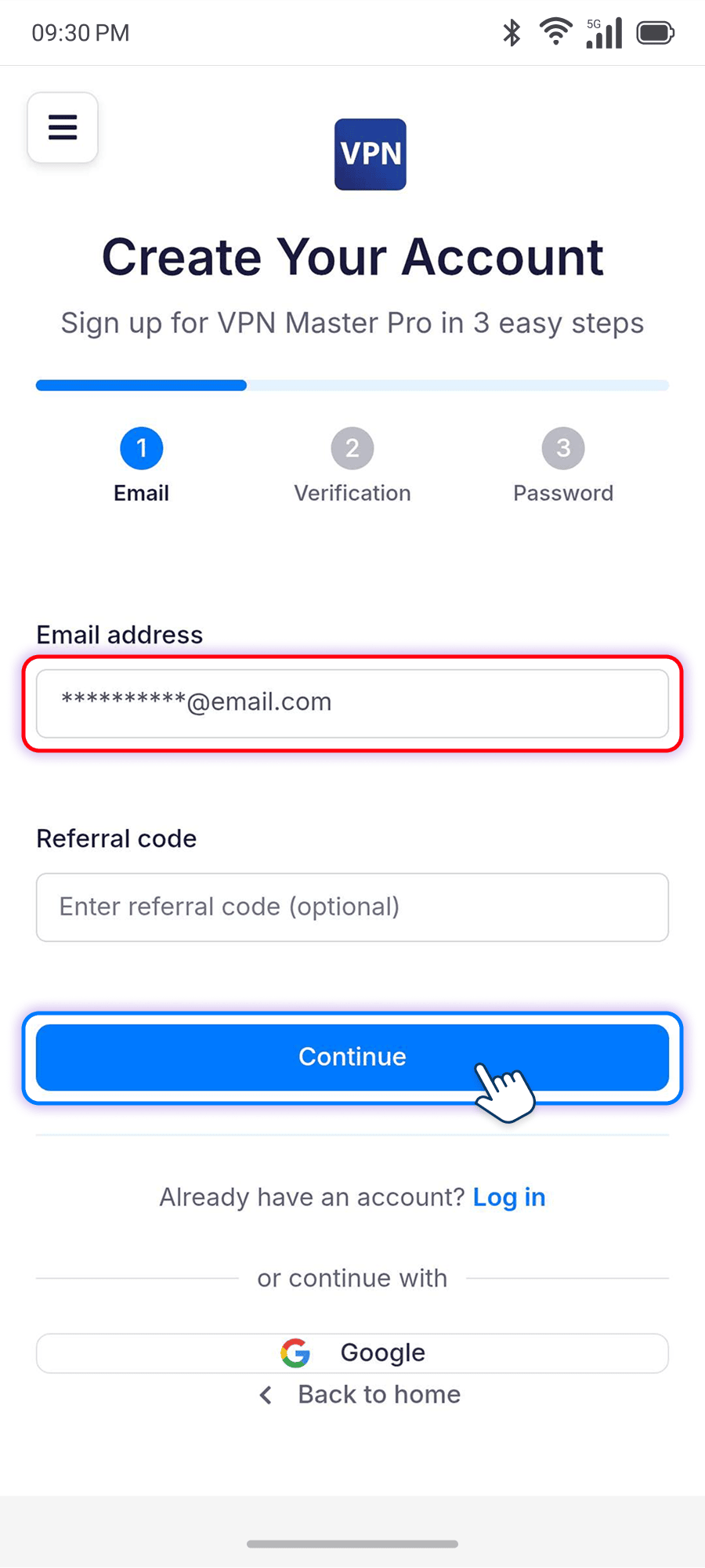
Enter your email and click Continue. If you don't have a referral code you can leave this blank.
-
Enter the verification code sent to your email and then click Continue. Check your spam folder if you don't see the email.

-
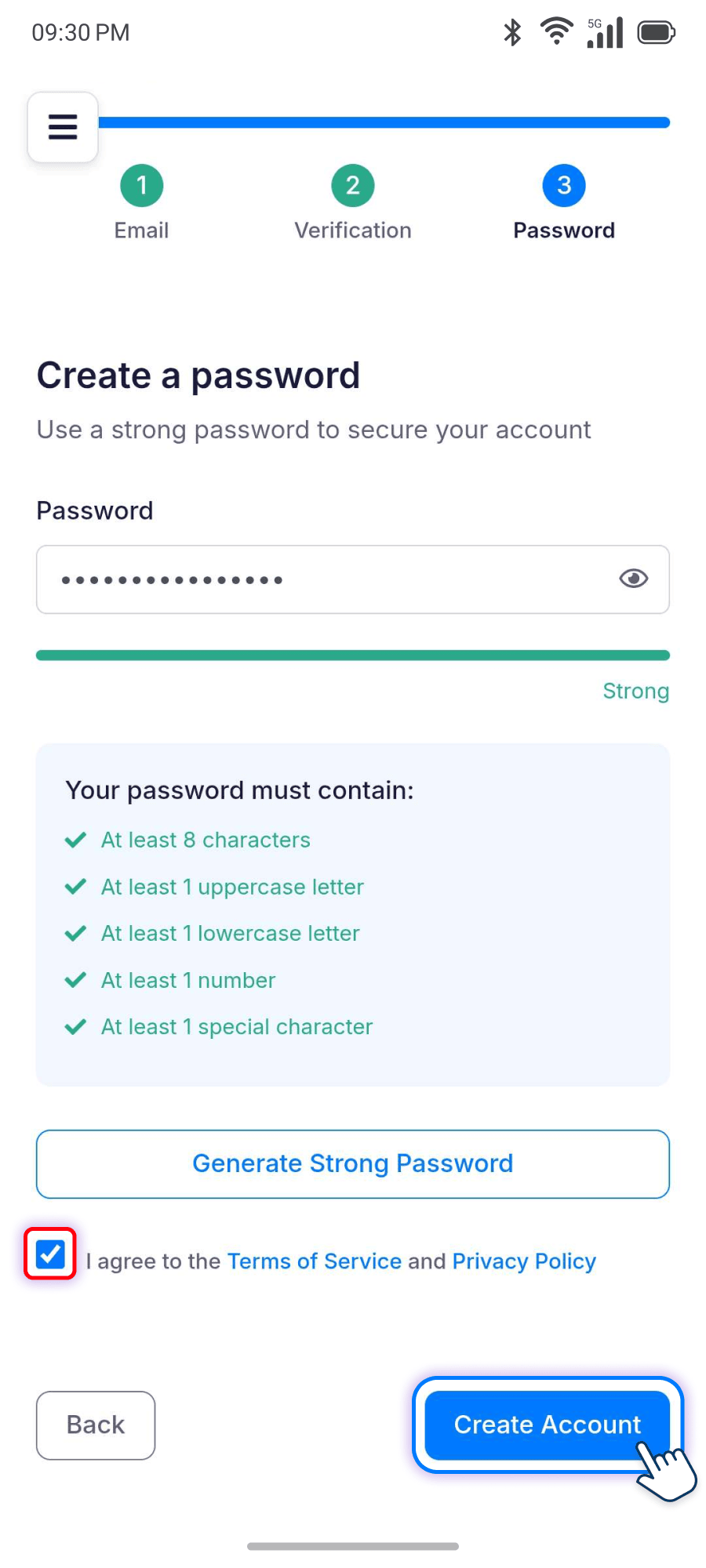
Set a strong password of at least 8 characters. To generate a secure password, you can try Generate Strong Password.

-
Check on the I agree to the Terms of Service and Privacy Policy box click on the Create Account button.
-
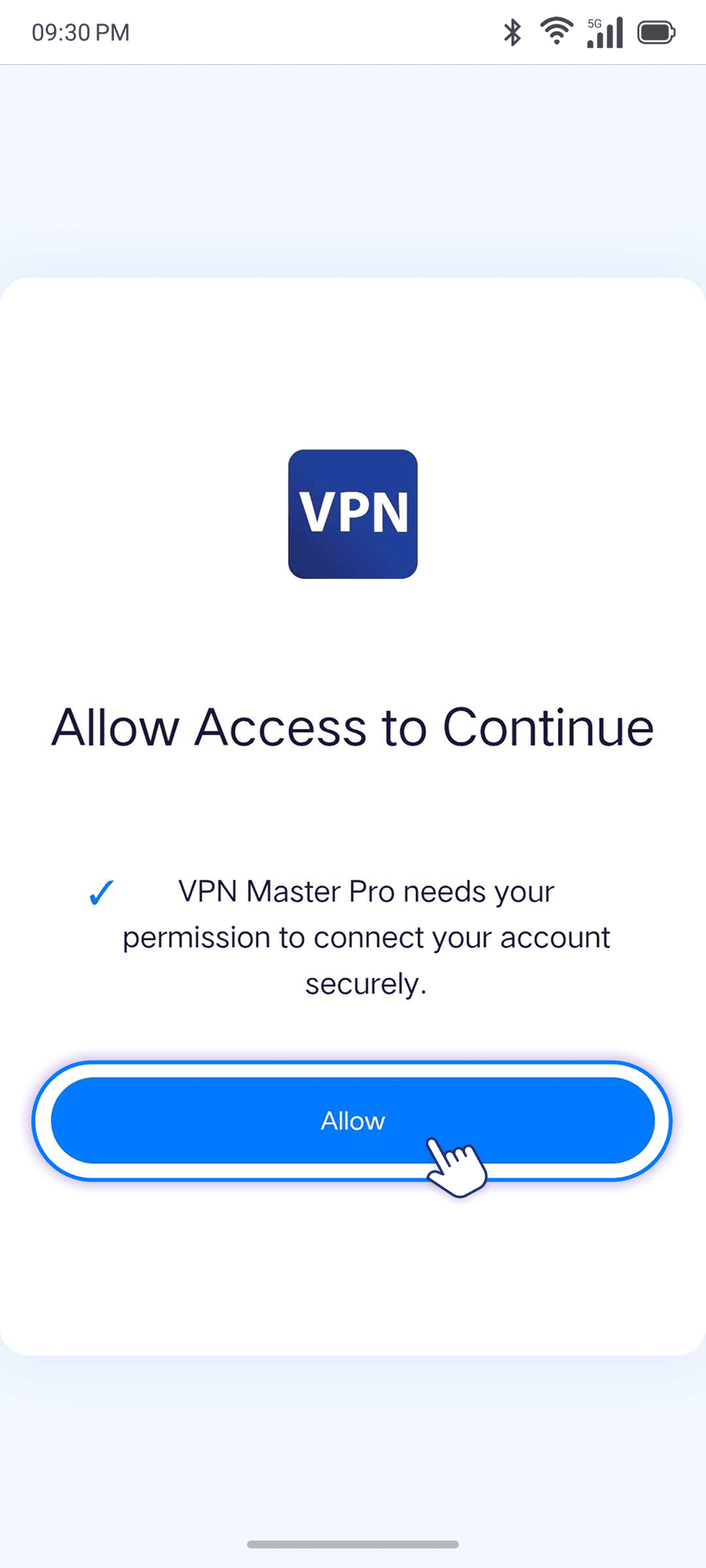
Click on Allow and then go Back to the App
If you already have an account yet:
-
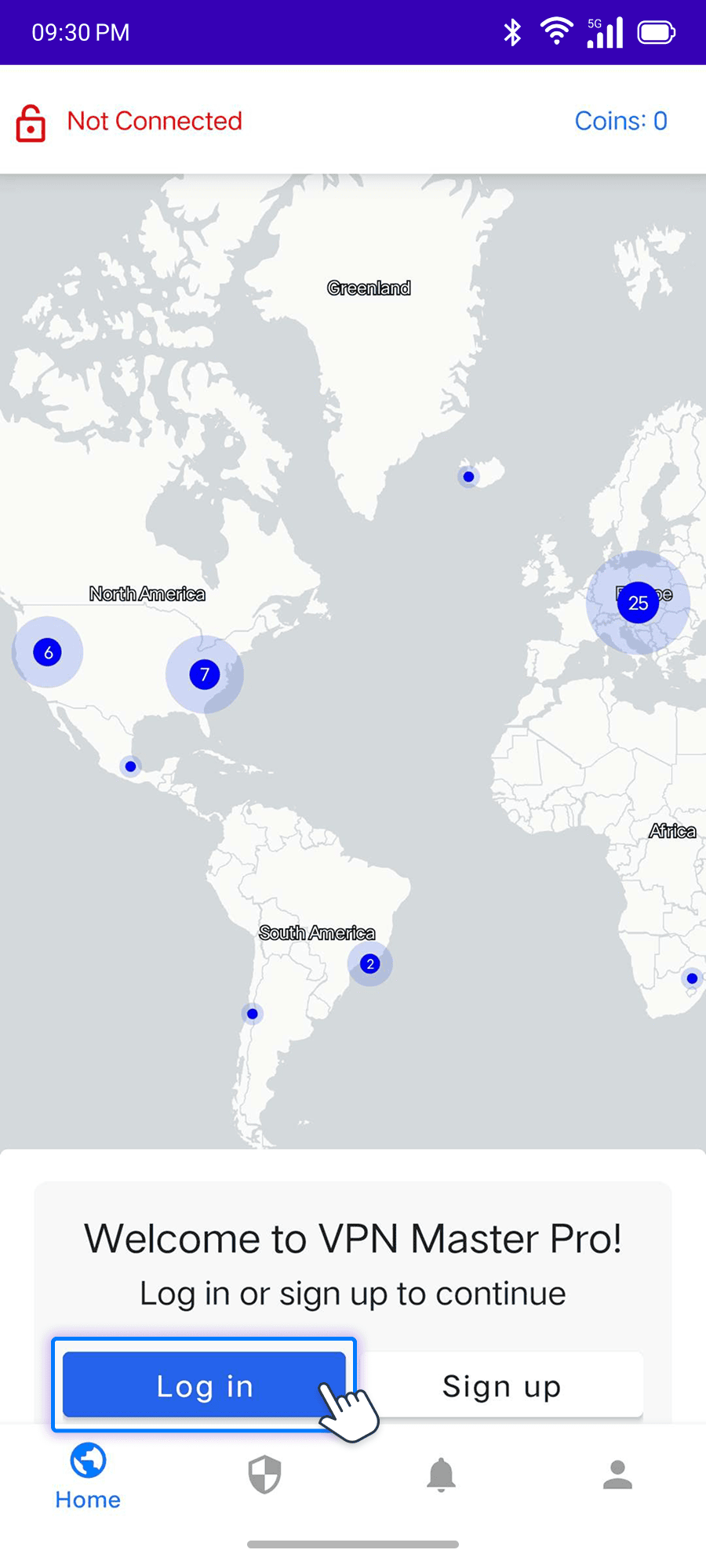
Tap on the Log In button in the app. Your default browser will open the secure login page.
-
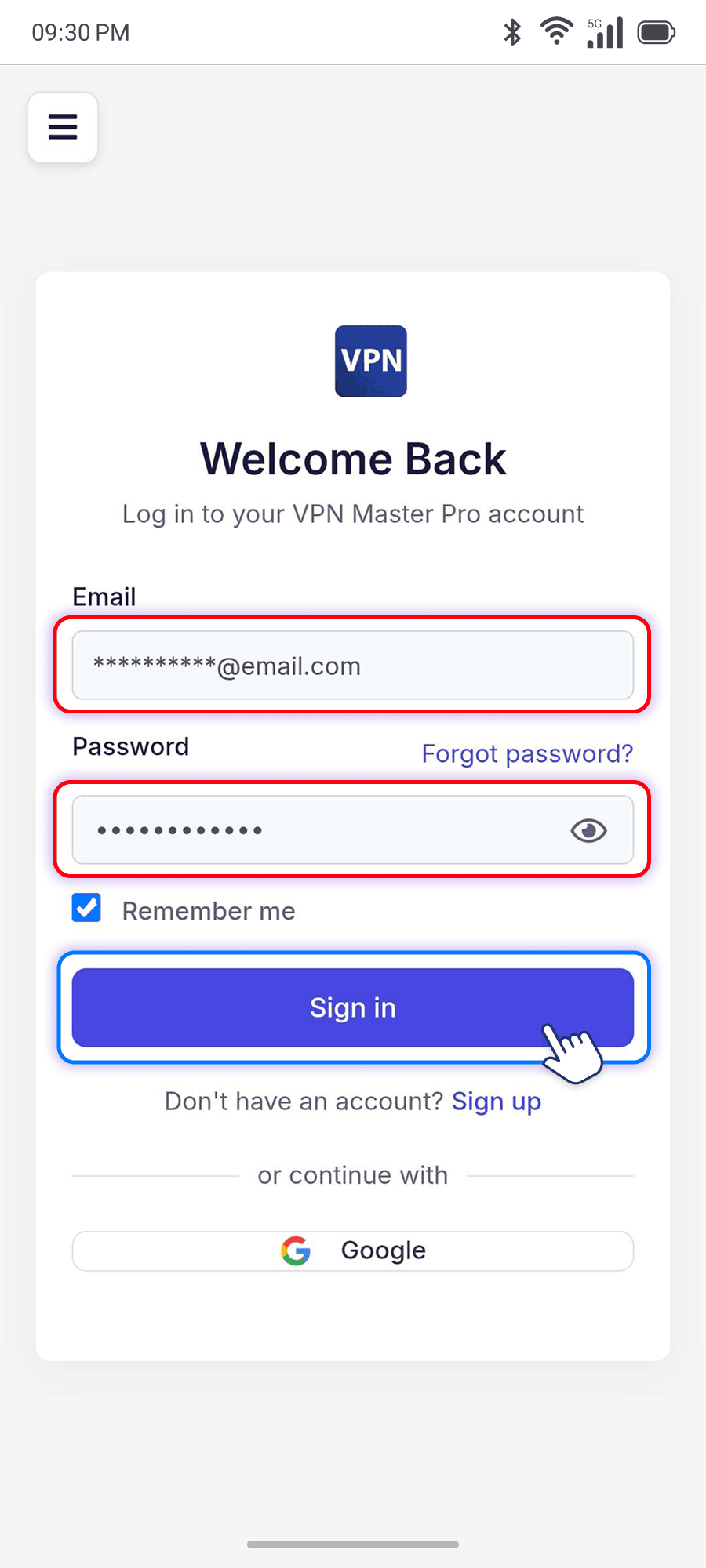
Enter the email address and password you used to register and tap on Sign in.
-
If prompted, approve the request and then tap on Allow to go back to the app.
Step-4: Connect to a server
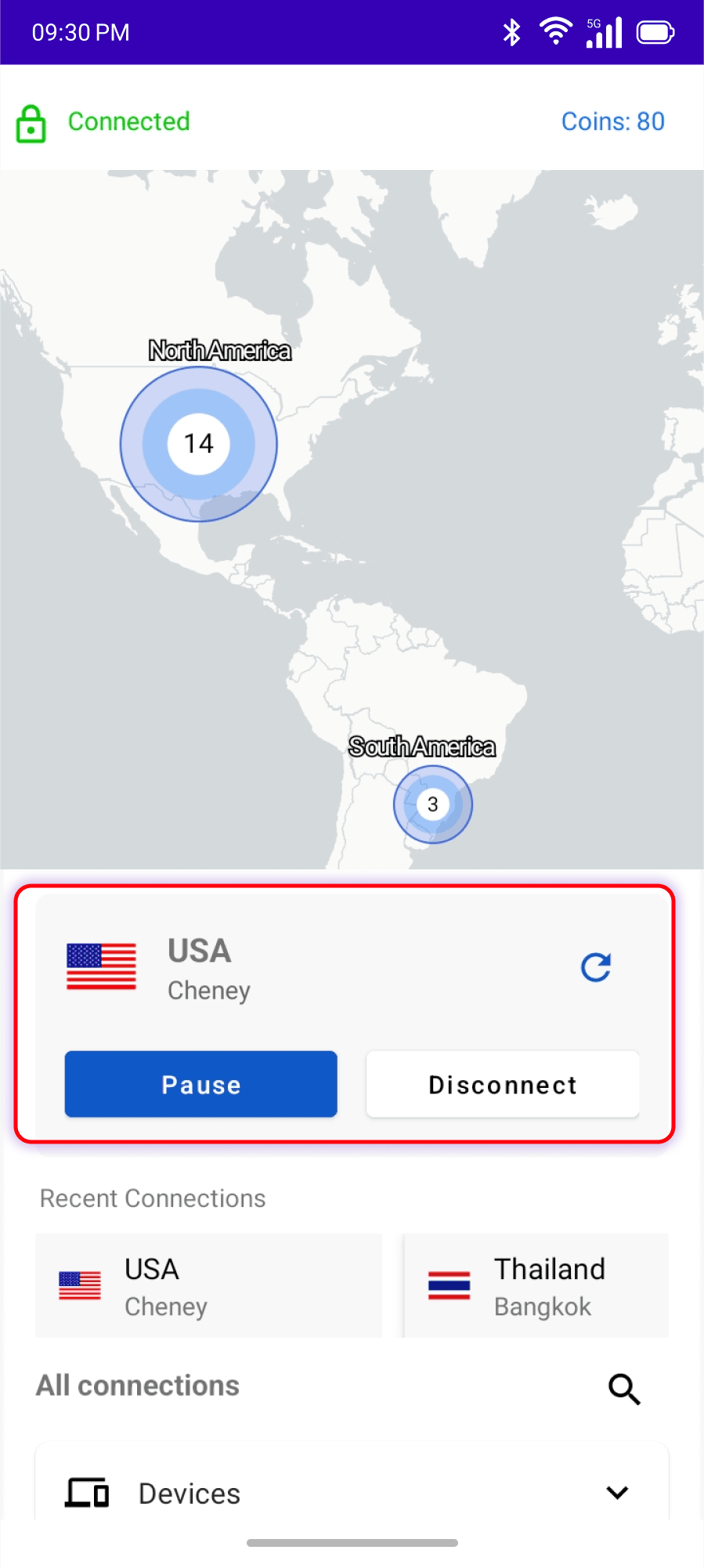
Click the big Connect button. The app will auto‑select the fastest location. Once connected you'll see a status change and a new IP address.
Tap on Quick Connect in the app to connect to the fastest server. You can verify whether the connection is succesful on IP checker site.
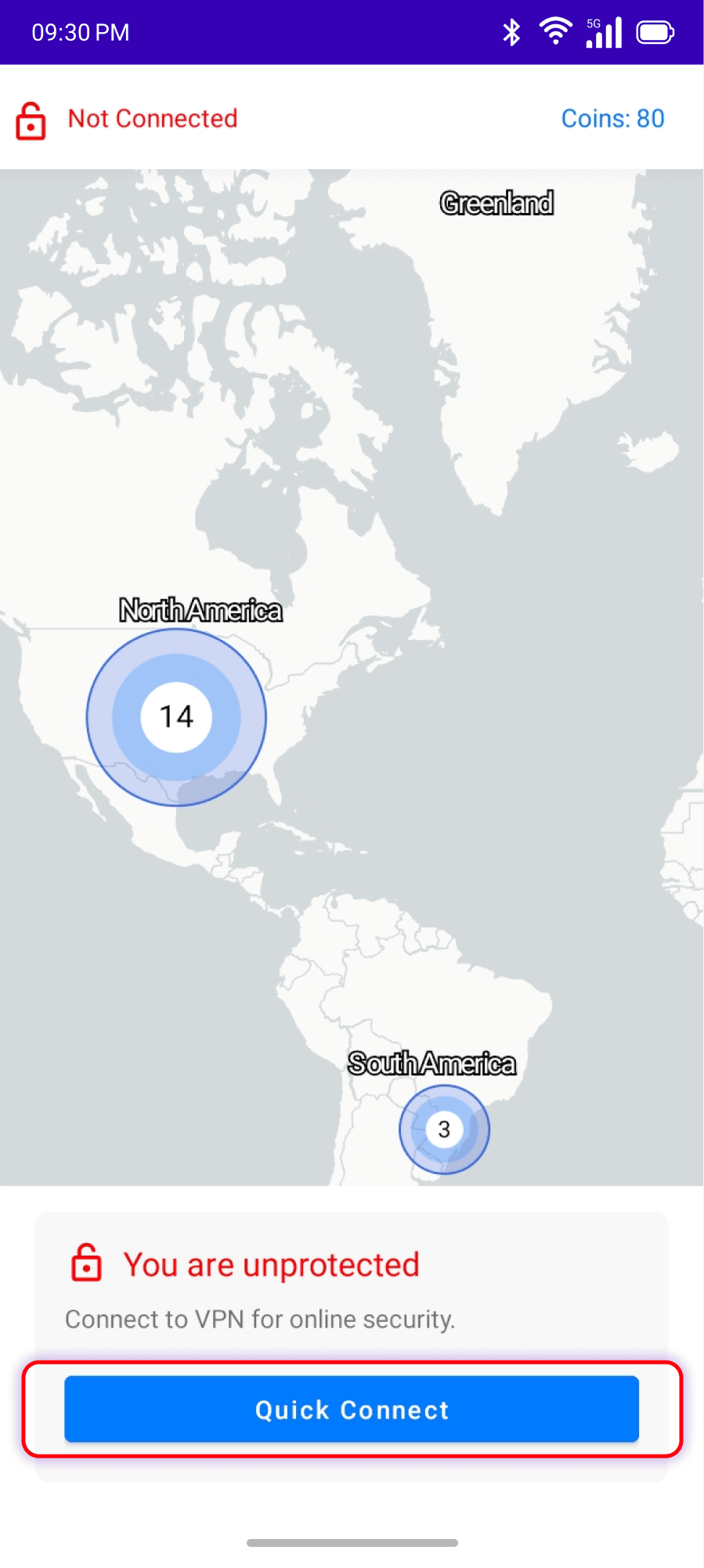
Pause, Disconnect, or Reload the server from these buttons
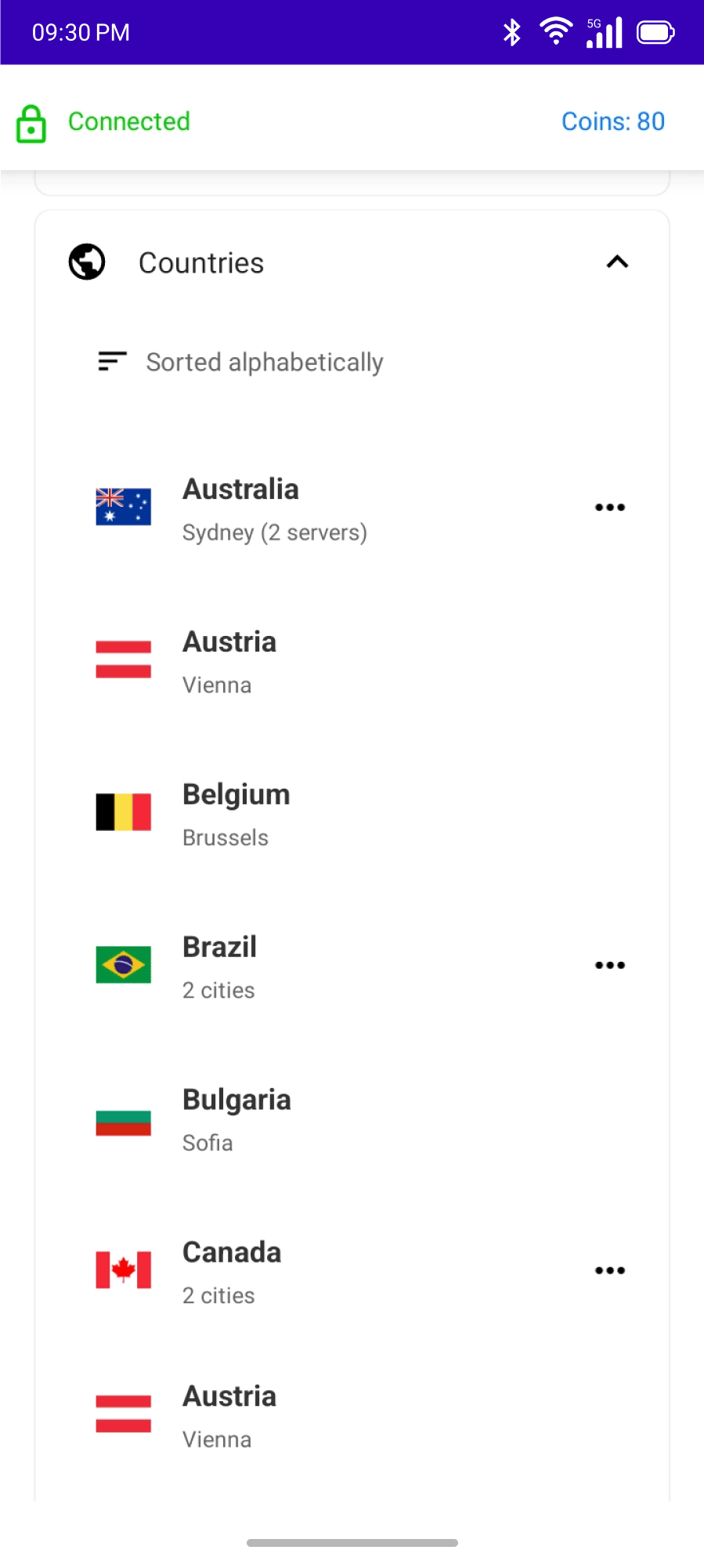
Swipe up to view the server list
Need More help?
If you are experiencing issues, please reach out to our support team for assistance.