How to disable Proxy Server on Browsers
This article walks you through the steps to manually disable Proxy Server on your browsers.
Disable Proxy Server on Mozilla Firefox
-
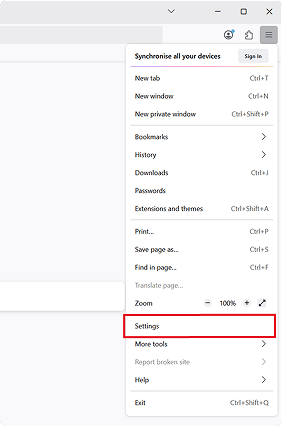
In the Firefox browser click (Hamburger) Menu icon. in the top-right corner. Select Settings.
-
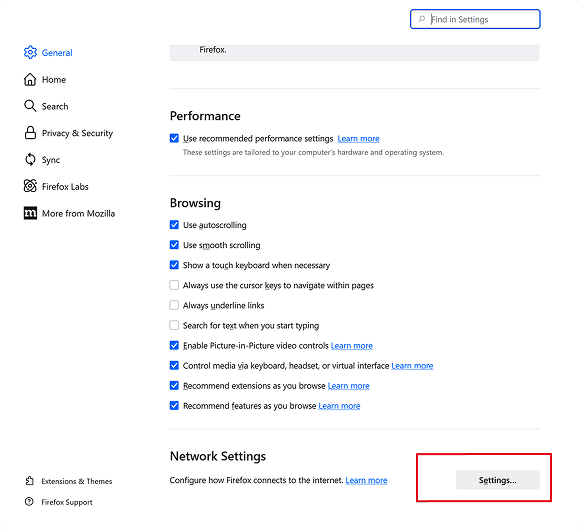
In the Settings tab, scroll down to the "Network Settings" section and click on the "Settings..." button.
-
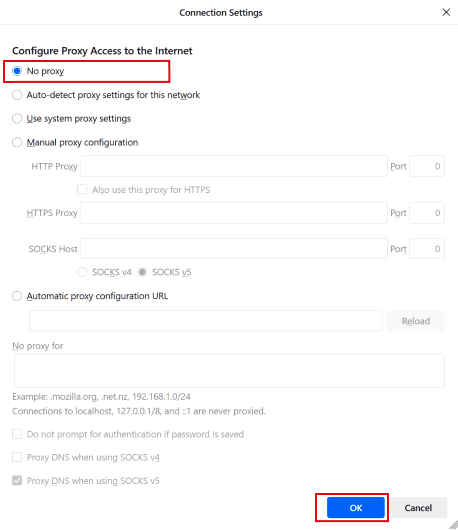
In the Connection Settings window, select "No proxy". Click "OK" to save your changes and exit the settings.
Disable Proxy Server on Chrome, Opera, and Microsoft Edge
When you change proxy settings on your device, not every browser follows them the same way. Some are tied directly to the system proxy, meaning any adjustment affects the whole computer.
However, browsers like Chrome, Opera, and Microsoft Edge are designed to adhere to the system proxy settings. Therefore, if you disable the proxy on your device, these browsers will automatically stop using it.
To disable the proxy server on these browsers, simply follow the steps to disable the proxy on your Windows device.
You may read the article on How to disable Proxy Server on Windows.
Need More help?
If you are experiencing issues, please reach out to our support team for assistance.