How to disable IPv6 on Android
This article walks you through the steps to manually disable IPv6 on your Windows device.
On Android devices, it is possible to disable IPv6 on mobile networks only.
Why Disable IPv6?
Some VPN tunnels block IPv6 to prevent leaks. For carriers that push dual‑stack (IPv4+IPv6), forcing IPv4 only helps maintain a stable encrypted route.
Step 1: Open Settings

Step 2: Search Access Point Names
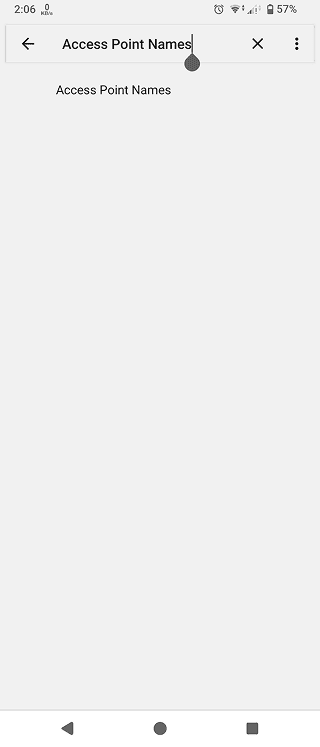
Alternatively, you can go through: Settings > Network & Internet > Mobile Network > Advanced > Access Point Names
Step 3: Open Access Point Names (APN)
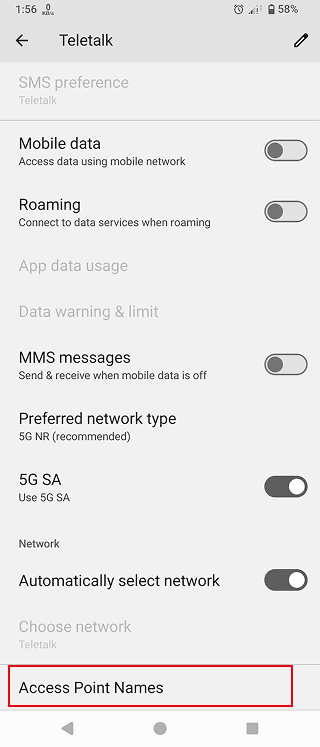
Step 4: Tap on APN protocol
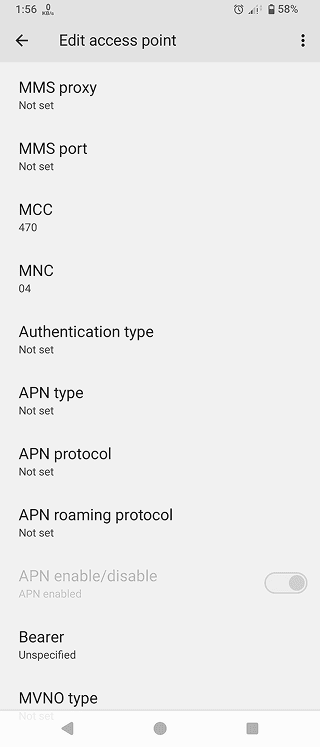
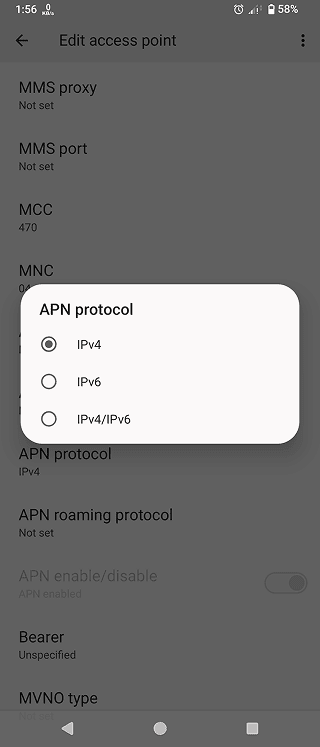
Step 5: Change Protocol to IPv4 Only
Step 6: Save and Apply
Save the APN (menu > Save). If required, reselect it so the changes take effect, then toggle mobile data off/on.
Verification (Optional)
Reconnect your VPN and visit an IP checker. Only IPv4 should appear. If IPv6 still shows, reboot the device and recheck the APN settings.
Re‑enable Anytime
If you need IPv6 later, return to the adapter properties and check the IPv6 box again.
Need More help?
If you are experiencing issues, please reach out to our support team for assistance.