How to allow VPN Master Pro Extension InPrivate window on Edge
Follow these steps to enable the VPN Master Pro Extension InPrivate window on Microsoft Edge.
What is InPrivate window in Edge?
InPrivate mode is a special browsing mode in Microsoft Edge that allows you to browse the web privately. When you use InPrivate mode, Edge does not save your browsing history, cookies, site data, or information entered in forms. This means that other users of the same device won’t see your activity.
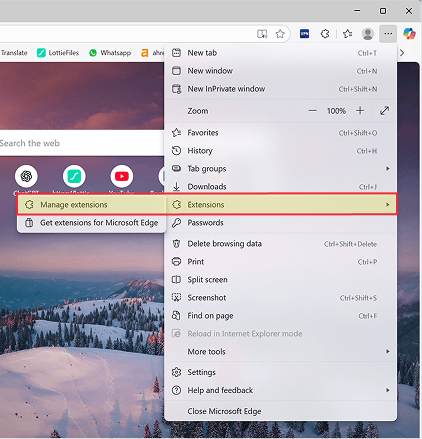
1: Click on three dots, then navigate to Extensions > Manage Extensions.
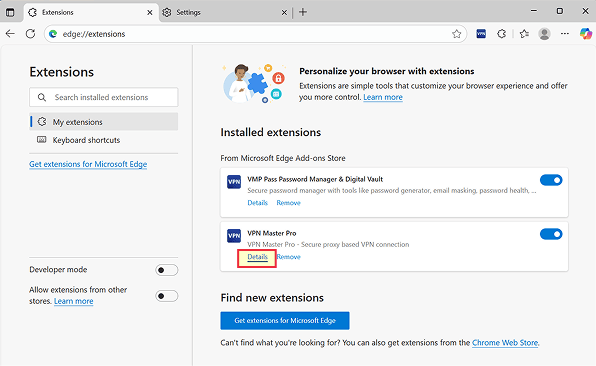
2: Find VPN Master Pro Extension, then click on Details.
3: In the Details page, find the "Allow in InPrivate" option and toggle it on.
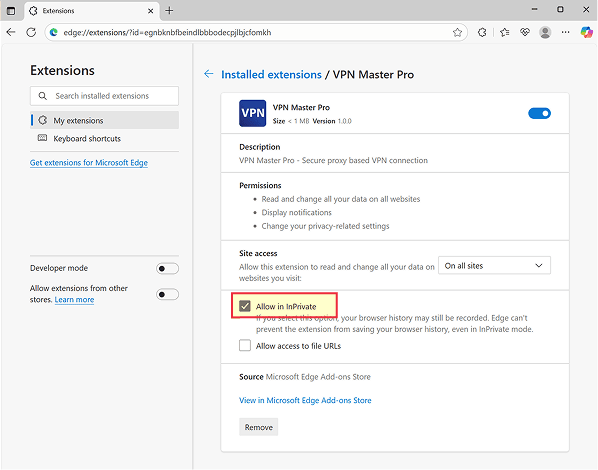
4: You have successfully enabled VPN Master Pro Extension in InPrivate window on Edge.
You can now use the VPN Master Pro Extension while browsing in InPrivate mode on Edge. Enjoy your private browsing experience your Edge Browser by pressing CTRL+SHIFT+N at once.
Need More help?
If you are experiencing issues, please reach out to our support team for assistance.